Preview and Publish Your Snippet Set
Before finalizing your Snippet Set, you can preview the animations, make adjustments, and publish the final version to the SDK.
1. Open the Snippet Editor
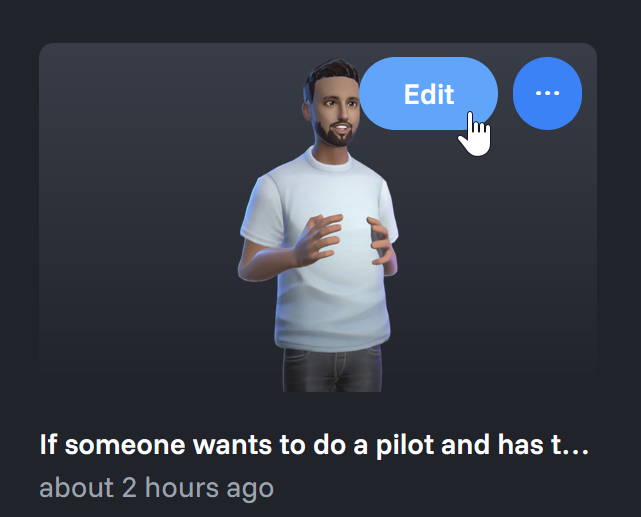
To begin, hover over a Snippet Set card and click "Edit" to open the editor.
2. Review and Edit Your Snippets
Inside the editor, you can manage all the snippets in your set.
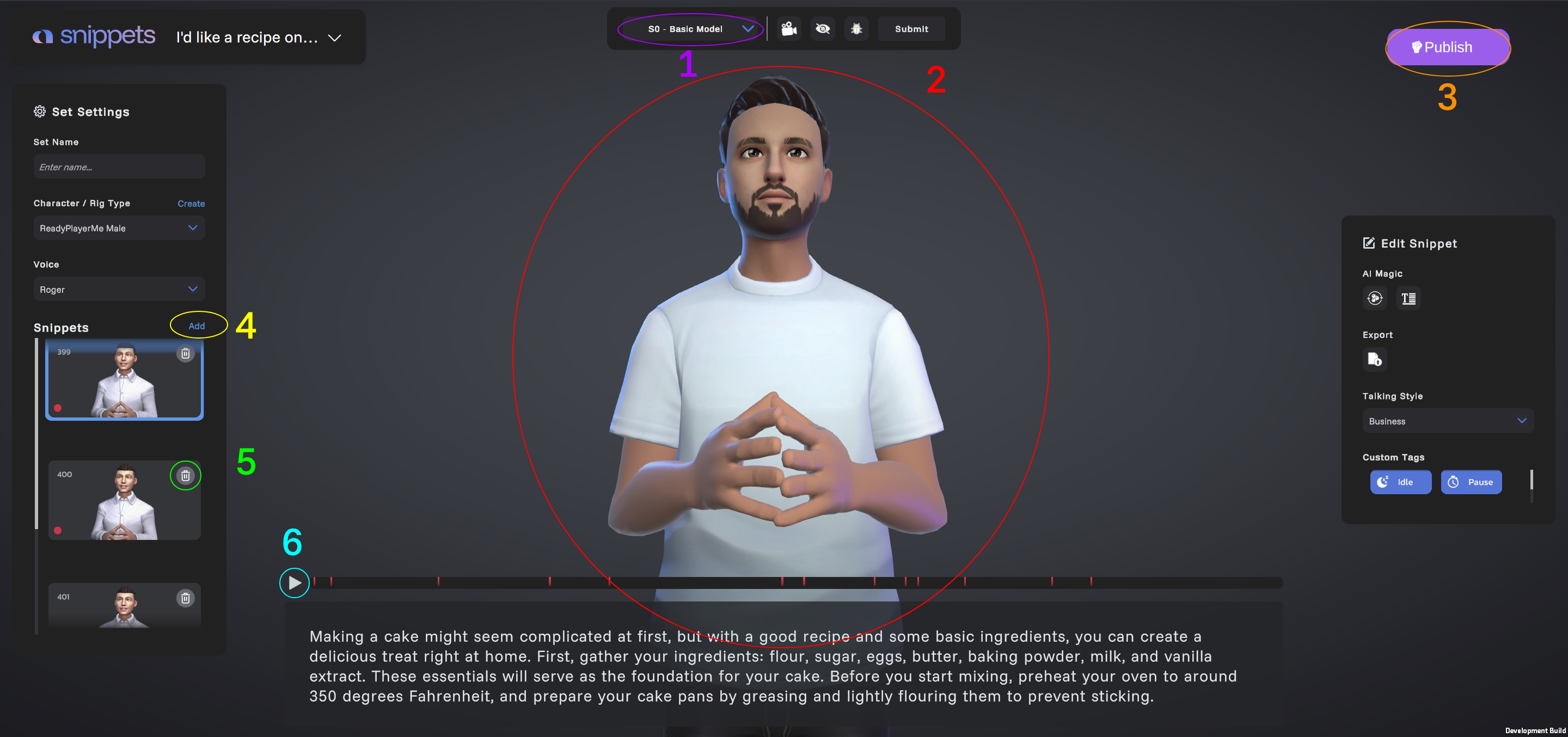
Here’s what you can do: View all snippets in the set, Preview animations and audio, Create new snippets with a script, Delete existing snippets, Regenerate selected sections of text or the whole snippet animation.
Legend
- Snippet Set Dropdown – Switch between your snippet sets.
- Character Dropdown – Switch between your characters.
- Delete Snippet – Delete a snippet from the snippet set.
- Regenerate Snippet – Regenerate a snippets animation or animation and voice.
- Play Button – Preview the animation for a selected snippet.
- Avatar Preview – See how your model animates before importing to the SDK.
- Publish Button – Finalize and send your snippet set to the SDK.
- AI Context Model dropdown – Switch between AI models for contextual animation. Choose between no context, contextual, or contextual+.
- Feedback Button – Provide the snippet team with feedback on snippet performance.
ℹ️ Any changes to the snippet set will require re-publishing.
3. Publish the Snippet Set
When you're satisfied with your edits and previews, click "Publish".
🔄 This will generate the final animations and make them available to the SDK.
🛑 Do not close the window while publishing is in progress.
4. Access in the SDK
Once publishing is complete, your Snippet Set will be available to download directly in the SDK.
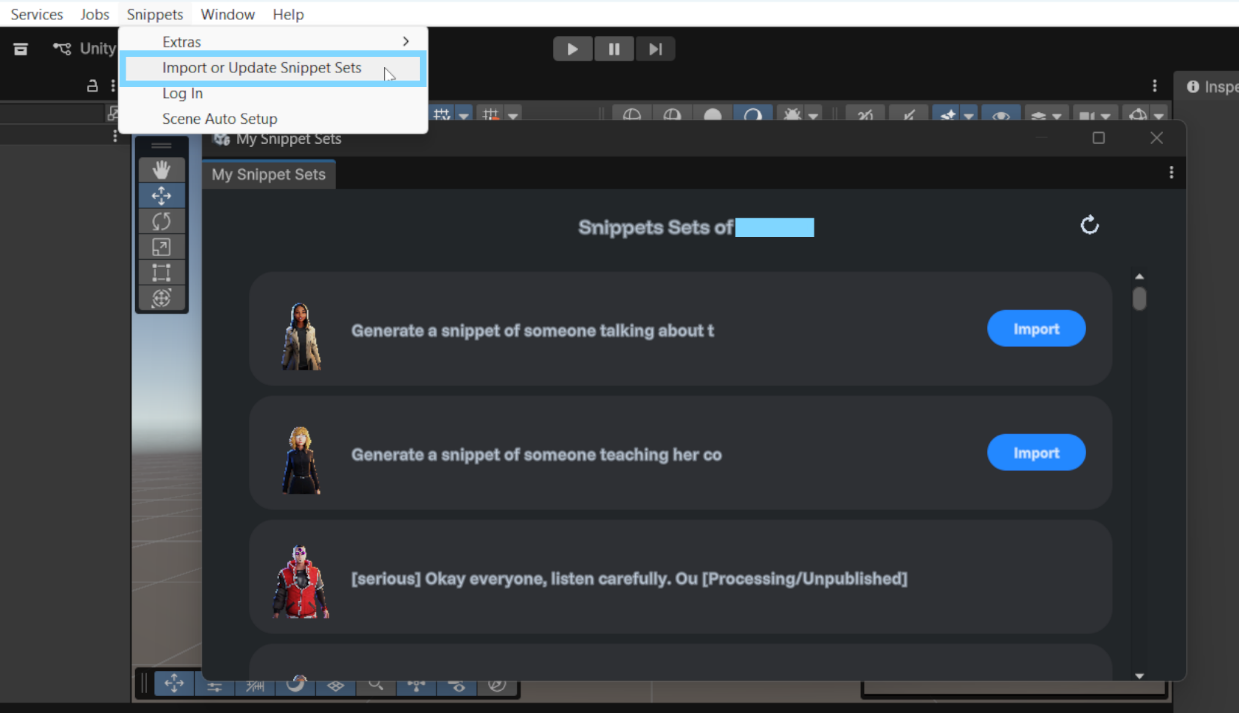
You're all set! You can now preview, publish, and use your Snippet Set in production.